Thursday, 13 November 2014
Thursday, 6 November 2014
Thursday, 9 October 2014
Task 1 - Classic Tween

I
opened Adobe Flash proffessional and created a new file Action Script 3.0 to a clear stage, which is the white square where the movie will
play. Anything outside the stage will not show on the movie.
I
saved the rocket image to my Library, this is where you can keep track of what
goes into the movie.
I then dragged my rocket image onto the stage and converted it to a symbol, this allows me to move the image in the movie.
I dragged my rocket to the side of the stage and used the timeline to make it move. The timeline shows each frame. The numbers represent which frame it is. 1 and 75 are keyframes because show where the image at starts and stops.
Once highlighted I used the classic tween to create the movement from one key frame to another.
I then exported my movie as a gif to save to my blog.
Thursday, 2 October 2014
Task 2 - Shape Tween
I used Adobe Flash professional to create my first shape tween.
First I created a new File action script 3.0 in Flash CS6
In the Property window I made sure my frame rate was set to 25fps and had a stage size of 550pixels by 400pixels
I then opened my clear stage.
To create my first shape I selected the polygon tool>Ellipse tool from the Toolbar and drew an Ellipse onto the stage.
On my timeline I then selected a key frame of 100.
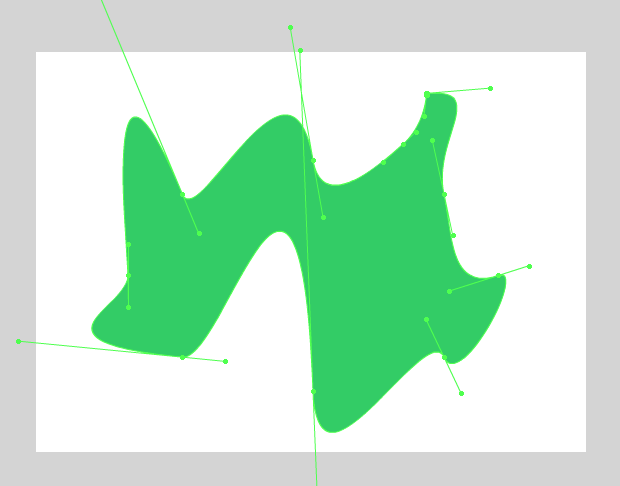
To change my shape I used the sub selection tool on the ellipse and clicked on it to make it active
I pulled at the anchor points on the shape to distort it.
On my time line I used the highlighted my frames and selected Shape Tween to make it move from one keyframe to the other smoothly.
Lastly I saved the file as a .fla file and exported it as an animated gif.
Subscribe to:
Posts (Atom)